Forum Replies Created
-
AuthorPosts
-
 satoriKeymaster
Hey Maurizio,
first of all, thank you for the purchase!
I will go over the questions in the same order:
1). Please tell me if you’ve installed the “Contact Form Generator” plugin that was packaged with the theme? Could you please try inserting a form into one of the pages so that I could look at the code? Thanks!
2). Yes, it is indeed a bug – please accept my apologies for any inconvenience and thank you for reporting! I’ve prepared a fix, which you can download here. Please download the archive, unzip it, and upload the contained file into the theme folder (/wp-content/themes/Kanso/), replacing the existing file. The menu links outside the one-page template should work like in the theme demo now.
3). Could you please clarify what you mean by “command” in this case?
Sincerely,
Andrii / Satori StudiosatoriKeymasterHey Alan,
first of all, thank you for the purchase!
I will go over the questions in the same order:
1). It is indeed a bug, please accept my apologies and thank you for reporting! Please download this archive, unzip it, and upload into the theme folder (/wp-content/themes/Kanso/), replacing the existing files.
2). Could you please clarify – did you upload the image via the “Website background: image” field in the “Page Elements” tab of the Theme Options panel?
Sincerely,
Andrii / Satori StudiosatoriKeymasterHey Anton,
first of all, thank you for the purchase!
In order to change the font sizes in Origami, please go to the “Custom CSS” tab of the Theme Options panel and input one or more of the following snippets, depending on your needs (replace the figures that come after “font-size” to anything you wish):
basic body font for posts and pages:
.normal, body, input, blockquote { font-size: 12px !important; }menu items font size:
#nav-secondary a { font-size: 10px !important; }page and post heading font size:
#content h1 { font-size: 10px !important; }post headings on the blog page:
#content h2 { font-size: 10px !important; }Should you need other fine-tuning, please let me know!
Sincerely,
Andrew / Satori StudiosatoriKeymasterHey Rafa,
glad to hear the issue has been resolved!
Should you have other questions, do not hesitate to contact me.Have a great New Year’s celebration!
Best,
Andrii / Satori StudiosatoriKeymasterHey KF,
– regarding the slider text positioning: in case you want the text to remain centered vertically, please make sure that the “Align & Position matrix under the “Layer General Parameters” is set to the middle area (see screenshot). You can also set offsets (both negative and positive) relative to the position you’ve chosen on the matrix.
– the slider buttons will have the boxed background-less look once you view the live slider on the website ;)
– to hide the timer line, please go to the “Appearance” section of the slider’s settings
– in order to set the button links, please open the “Layer Links & Advanced Params” section while in the layer editing mode; in your case you need to choose the “Scroll below slider” in the “Link to Slide” drop-down.
Just in case I’ll mention here that there is a demo slider (identical to the one used in the theme’s live demo), contained in the “Resources” folder of the main theme archive, which you can import as a new slider and look at its settings.
Let me know if something is still unclear!
Sincerely,
Andrii / Satori StudiosatoriKeymasterHey KF,
in Kanso, like in most other WordPress themes, the footer is a widget area which can be populated by widgets; could you please try updating the theme with this file (unzip the archive and upload the contained file into the theme folder: /wp-content/themes/Kanso), refresh the website and then check the “Appearance -> Widgets” admin section – is there a “Footer” widget area available for adding widgets? Thanks!
Sincerely,
Andrii / Satori StudiosatoriKeymasterHey Rafa,
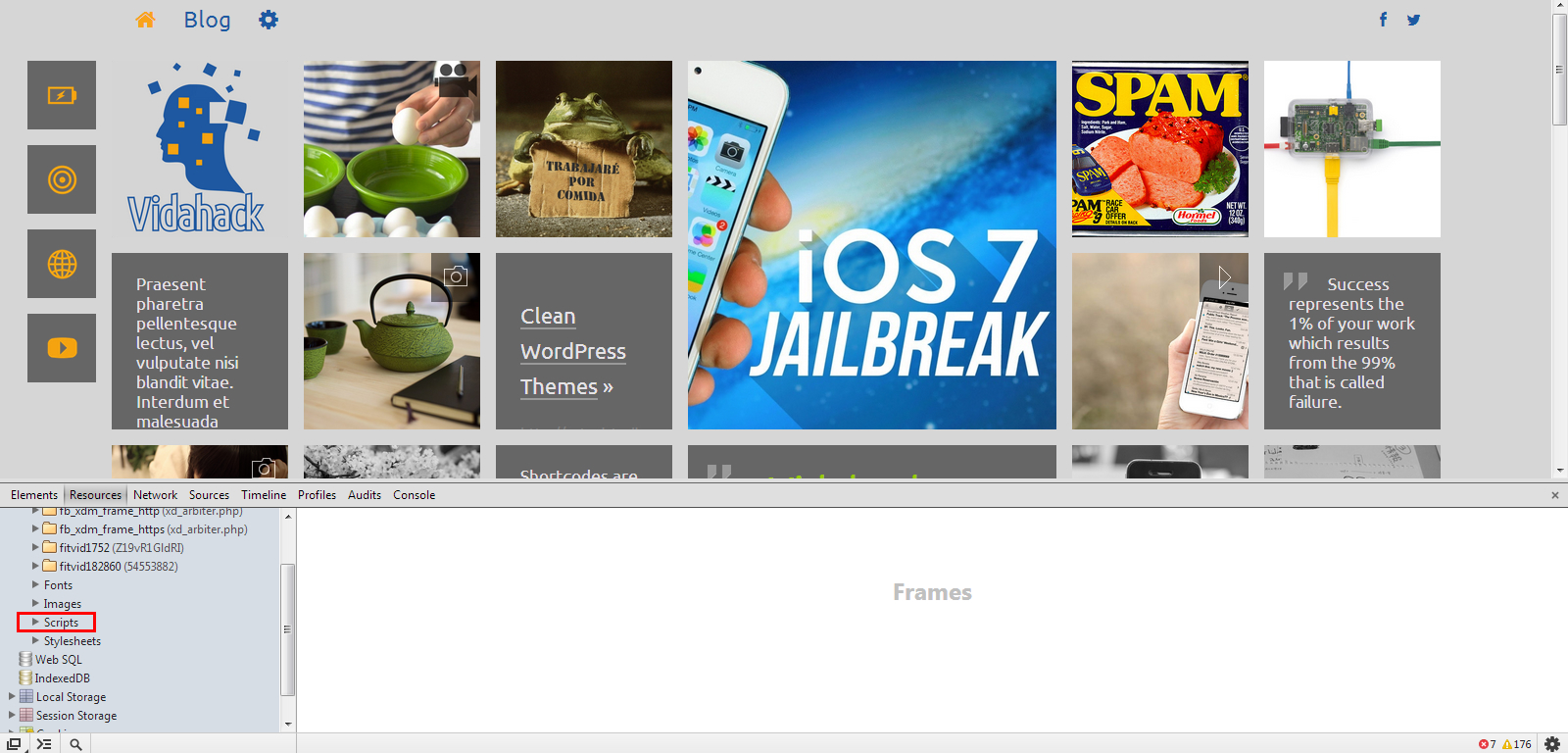
at the moment the masonry layout is working fine on the website, and the code inspector does not indicate any errors within Javascript code (see screenshot). Could you please clarify how the jquery errors manifest themselves and which browser you are using? Thanks!
Sincerely,
Andrii / Satori StudiosatoriKeymasterHey Reiner,
the images in the “gallery” post and project formats are sourced from the images attached to the post in question, and the order is determined by the date when the image was attached – i.e. in case you’ve uploaded images into the project content, they will appear in the same order as they were being uploaded; in case you wish to reorder the images, you’ll need to delete them from the “Media -> Library” admin menu and upload again to the project in question, following the order you need.
Sincerely,
Andrii / Satori StudiosatoriKeymasterThank you for the feature proposition, Rafa! Added to my to-do list for version 2.2.
Should you have more questions, do not hesitate to contact me!
Sincerely,
Andrii / Satori StudiosatoriKeymasterHey Rafa,
first of all, thank you for the purchase!
you’re right, it’s an issue indeed – the theme’s script only recognizes and replaces images within the normal “img” html tags, not background images. I did add a mechanism to circumvent that for portfolio item backgrounds, yet no such fix exists for the icon menu yet. It will require some programmatic changes to the theme, but so far here’s an easy fix you can try to implement:
1). make the icon menu images twice as large as you need them to be on normal (non-retina) displays; make sure that the image files are of the same dimensions each (ideally – squares).
2). upload these images to the respective icon menu items in the “Icon Menu” tab of the theme options panel;
3). apply this CSS (you can add it inside the “Style: Add Custom CSS” tab of the theme options panel:
#iconmenu .icons-item { background-size: 50%; }
You can adjust the background-size figure until the icons are of the size you want on the non-retina displays (as long as it is less than 50%).Sincerely,
Andrii / Satori Studio -
AuthorPosts