Forum Replies Created
-
AuthorPosts
-
 satoriKeymaster
Hey On3w,
1). Since the plugins do not affect the situation as it seems, I will need to ask you for the admin access information in order to see the back-end and troubleshoot further. You can send it to support@satoristudio.net, no disclosure guaranteed.
2). All text strings in Kanso are added using the WordPress native translation wrapper, thus they can be translated by any plugin that makes use of such tags, e.g. the free Quick Localization (please note that the “text domain” in the theme is “satori”) or by the paid WPML (in case you want a website in several languages).
Sincerely,
Andrii / Satori StudiosatoriKeymasterHey Erica,
first of all, thank you for the purchase!
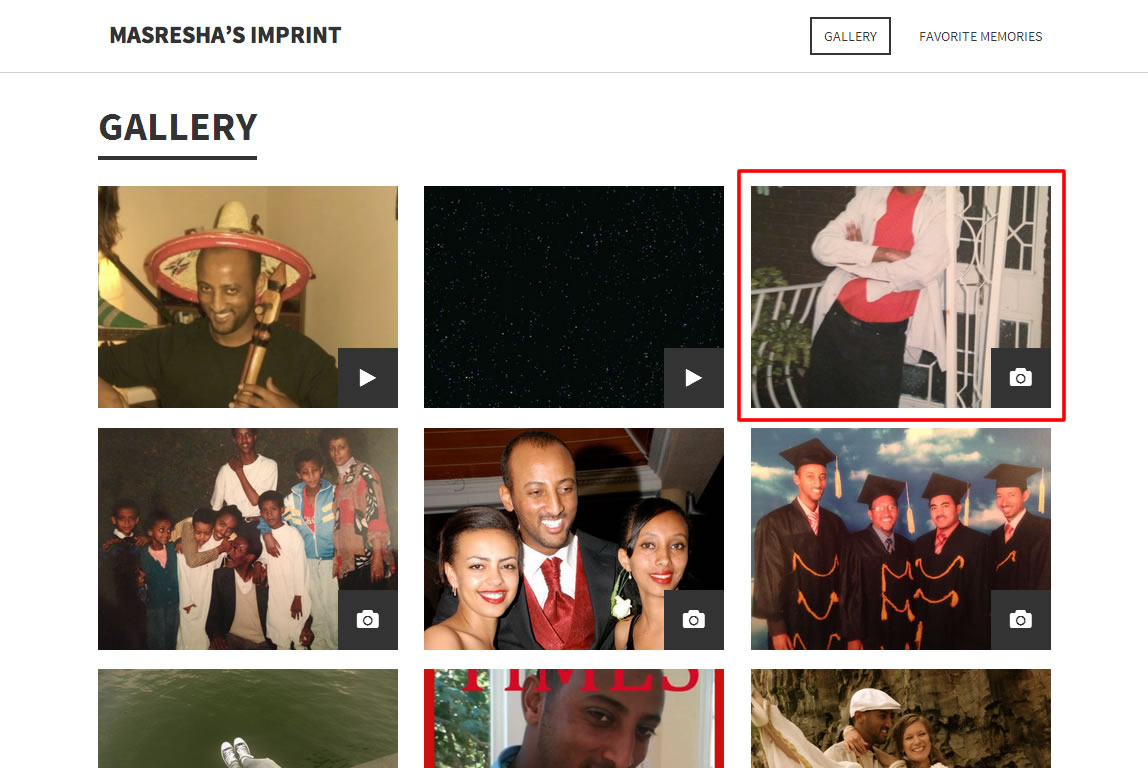
The image shown in your first screenshot does appear on the website, please see the highlighted portfolio item on my screenshot. Portfolio projects display images as backgrounds in Kanso in order to enhance theme flexibility and allow for compatibility with high-resolution displays. The background images are positioned in the middle of the portfolio items to fit in with maximum efficiency by using the CSS “background-size: cover” method. In this case the original image is quite elongated vertically (source), which makes it cropped in the portfolio grid. Please try making the thumbnail source image more “square”, i.e. closer to the dimensions of the portfolio boxes.
P.S. I can see that there’s a small CSS bug in the theme by looking at the positioning of the portfolio grid on your website – I recommend downloading this fix and updating the theme files (simply upload the contained file into the theme root folder /wp-content/themes/Kanso/).
Sincerely,
Andrii / Satori StudiosatoriKeymasterHey Leanne,
could you please give me a URL to illustrate your most recent question?
Thanks!Best,
Andrii / Satori StudiosatoriKeymasterHey On3w,
this is odd – the same thing does work in the theme demo (try pressing on a portfolio item and then on a menu item) – and any other Kanso-based website that I’ve tested. Let’s troubleshoot – firstly, could you please try disabling all third-party plugins (i.e. those that did not come with the theme) one by one and refreshing the page / retrying the menu links from a project page each time you disable a plugin. Please let me know of the result.
Sincerely,
Andrii / Satori StudiosatoriKeymasterHey Laurens,
1). Here’s the custom file which does include the maps sections into the menu (I’ve excluded them on purpose previously). Again, simply unzip the archive and upload the contained file into the theme folder.
2). This is a trickier one; the only “quick” way I can think of is to force the maps to behave like this in all browsers would be to add an extra transparent div layer above them (i.e. the maps would be “behind the glass” and not affected by the scrolling), yet in this case one will also not be able to interact with the map in any other way. The more “natural” way would be to use Google Maps API to embed the map, yet this requires knowledge of Javascript and other languages; I cannot do it remotely for you because to use the API each website must create a unique API key that will be used for embedding the maps on that particular website. If you still want to go for it, you could try creating the key in the “Obtaining an API Key” section of the API manual and send it to me via email to support@satoristudio.net, I might be able to help with the rest.
3). Regarding your last question: please provide a specific example with a link – that way I will be able to see the code and give you a more substantial piece of advise.
Best,
Andrii / Satori StudiosatoriKeymasterAlright, now I think I get what you’re after.
These things are not envisaged in the theme originally, yet the extra code is quite straightforward so here goes:
#post-391 { background-color: transparent !important; }
#header #header-box { background: none !important; }
#nav-wrap { float: none; background-color: #82C341; }
Please let me know if it works as intended.
Sincerely,
Andrii / Satori StudiosatoriKeymasterHey Damien,
that is indeed a bug, my apologies and thank you for reporting! I will include the corrected version into the theme update ver. 2.1 that I’m planning to submit to ThemeForest in several hours. If you need a fixed CSS file, please let me know, I’ll post it here.
Sincerely,
Andrii / Satori StudiosatoriKeymasterHey Leanne,
first of all, thank you for the purchase!
I will answer the questions in the same order:
1). In order to remove meta data from blog posts, please go to the “Style: Add Custom CSS” tab of the Theme Options panel and paste this CSS code there:
.post-meta { display: none; }
and press “Save All Changes”.
2). To remove posts titles from single blog posts, please use this code in the same manner as above (i.e. add it alongside the previous CSS to the same Theme Options tab):
.type-post .post-header { display: none; }
3). Regarding your question about the gallery images you sent recently via the contact form on the demo website (I suppose it was you :) – could you please clarify which gallery you have in mind, and provide a URL of the page in question. Moreover, please describe how exactly you’d like the images to be different – I will then be able to tell if it is possible in the framework of the theme.
Sincerely,
Andrii / Satori StudiosatoriKeymasterHey there!
custom CSS rules can be added in the “Style: Add Custom CSS” tab of the Theme Options panel. In case of logo opacity, it will look like this:
#logo { opacity: 0.5; }
The lower the number, the more transparent the image will be (1 is fully opaque, 0 is fully transparent).
Sincerely,
Andrii / Satori StudiosatoriKeymasterHey Laurens,
please download the archive from my repository, unzip it, and upload the containing files into the theme root folder (/wp-content/themes/Kanso/), replacing the existing files when needed.
The new „Page: Google Map“ page layout displays a full-width interactive Google Maps interface, e.g. to use before the contacts page. In order to create a Google Maps page, add a new page and declare the page layout as „Page: Google Map“. Then go to Google Maps, find the location you need and press on the little cog icon in the bottom right corner of the screen; in the pop-up window, click on the “Embed map” tab, copy the link (it should begin with „<iframe“) and paste it into the content of the page. Update/save the page and do not forget to include it into the one-page display in the "One-Page Website" tab of the theme options panel.
Please let me know if it works as intended.
Best,
Andrii / Satori Studio -
AuthorPosts