Forum Replies Created
-
AuthorPosts
-
July 8, 2014 at 8:41 am in reply to: H1 Heading style has a color background in posts and pages – why? #3702
 satoriKeymaster
Hey Monika,
I can see in the code that there’s a “margin” CSS property added to the “h2” elements, most probably in the “lessframework.css” file – please remove it, and the headings will be back to normal :) Alternatively, you can add this CSS rule to the theme’s “style.css” file:
.post-header h2 {
margin: 0;
}
I’ve replied to the logo issue in a separate thread, please see here ;)
P.S. it seems that you are using a caching plugin on your website – if it’s the case, I would highly recommend not using any such until the website is out of development; it obscures the real code and might hinder the propagation of any changes made in the theme files.
Sincerely,
Andrii / Satori StudiosatoriKeymasterHey Monika,
there are two ways you can address this situation: either cropping off the whitespace above and below the test in the logo image (to make it of the same height as the slogan element, i.e. 26px) – OR increasing the line-height of the slogan element by adding this CSS to the theme’s “style.css” file (opens by default when you visit the “Appearance -> Editor” admin section, do not forget to save the changes once you insert the code):
#slogan {
line-height: 56px;
}Let me know if you face any problems while implementing the above solutions!
Sincerely,
Andrii / Satori StudioJuly 8, 2014 at 7:32 am in reply to: H1 Heading style has a color background in posts and pages – why? #3699satoriKeymasterHey Monika,
could you please provide a direct URL of the page with the problem you’ve described, and tell me what was your initial goal when you started editing the CSS file. Thanks!
Sincerely,
Andrii / Satori StudiosatoriKeymasterHey Timon,
I am planning to add the Universal Analytics in version 3.2; you can download the updated “header-functions.php” file here if you want. Otherwise, if you are planning to use a separate plugin, you can simply leave blank the “Google Analytics Code” field in the “Analytics” tab of the Theme Options panel – the old code will not work without it; if you want to completely eliminate the code, you can delete lines 93-103 of the theme’s “header-functions.php” file.
Sincerely,
Andrii / Satori StudiosatoriKeymasterHey Massaki,
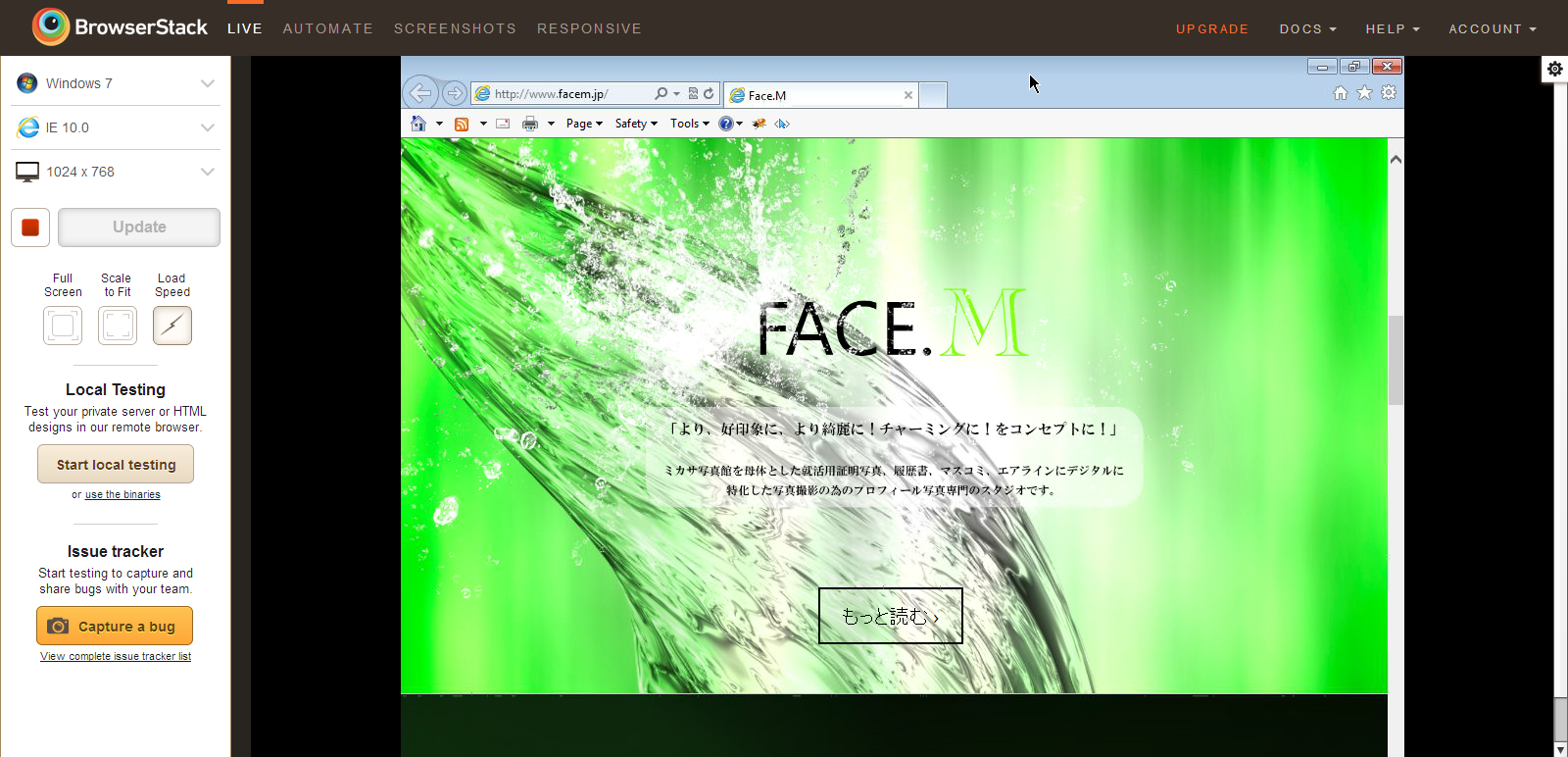
I’ve tested your website in IE11 (screenshot) and IE10 (via Browserstack, screenshot), they both seem to be displaying the images correctly. Could you please tell me which version of IE you are using to test the website? Thanks!
Sincerely,
Andrii / Satori StudiosatoriKeymasterHey PV,
the icon menu in the left part of the demo uses the portfolio-related “tag” taxonomy I’ve mentioned above – once you have the tags (Portfolio -> Tags admin menu), you can create the icon menu items in the “Icon Menu” tab of the Theme Options panel. For more information and screenshots, please see pages 3-4 of the theme manual.
Should you have problems with the icon menu items, do not hesitate to contact me!
Sincerely,
Andrii / Satori StudiosatoriKeymasterHey PV,
could you please provide the URL of the website in question? I would need to see the live code before I can provide meaningful recommendations; if for some reason you do not wish to disclose the URL here, you can send me an email to support@satoristudio.net
Sincerely,
Andrii / Satori StudiosatoriKeymasterHey Selena,
could you please provide the URL of the page in question? I’d need to see the actual code before I can provide a definitive solution. Thanks! If for some reason you do not wish to disclose the website’s URL on the forum, you can send me an email to support@satoristudio.net
Sincerely,
Andrii / Satori StudiosatoriKeymasterDear Selena, please download this archive, unzip it, and upload the resulting file into the theme folder (/wp-content/themes/Ikebana/) via ftp, replacing the existing files when prompted.
Dear Luigi, thank you for the suggestion! I will consider adding this feature to the next versions of Ikebana.
Sincerely,
Andrii / Satori StudiosatoriKeymasterHey Dan,
one would need to use the native “next_post_link()” and “prev_post_link()” functions; here you go, just upload the contained files into the theme folder (/wp-content/themes/Ikebana/), replacing the existing ones. Let me know if something’s not working!
Sincerely,
Andrii / Satori Studio -
AuthorPosts