Forum Replies Created
-
AuthorPosts
-
 satoriKeymaster
Dear Denis,
I forgot that I have access to the admin panel last time :)
I’ve checked out the back-end and the source of this issue was indeed the URL field in “Appearance -> Menus”: you had it as “http://www.touhou.si/#”, whereas the “#” (i.e. just the hashtag without the full URL) would do the trick. Changed that and now the menu behaves as expected.Sincerely,
Andrew | Satori StudiosatoriKeymasterHey Sculley,
first of all, thank you for the purchase!
The data import sequence has not been included because it is a standard WordPress procedure and is not theme-specific, but now I think I will include this part into the manual as well, thank you for bringing this up!
To answer your question:
1). Please go to the “Tools -> Import” admin menu after installing and activating the theme.
2). From the importing options, choose “WordPress”.
3). An overlay will open prompting to install the importer module. Press on “Install now” button.
4). After the module installs, press “Activate Plugin & Run Importer”.
5). Press the “Choose file” button and choose the file called “Fuji_demo_content.xml” located in the “Resources” folder inside the “Fuji_WP_Theme_Package” main folder downloaded from ThemeForest.
6). Press “Upload file and import”.
7). Tell the system which author to assign the imported posts to (or create a new one), and check the “Download and import file attachments” option!
8). Press “Submit”.The importer will then import all posts, pages, categories, images, and other content from the original Fuji demo. The only things that will need to be inserted by hand are the Theme Options settings since they are not part of the WordPress importer but rather are theme-specific. In particular, the logo, the favicon, the header image, and the header slider will need to be added through the Theme Options panel. You can use the images from the demo if you need for that, just right-click on the required image and press “Save image as..” in your browser.
Let me know if there is something that needs further clarification!
Best,
Andrew | Satori StudiosatoriKeymasterHey Thomas!
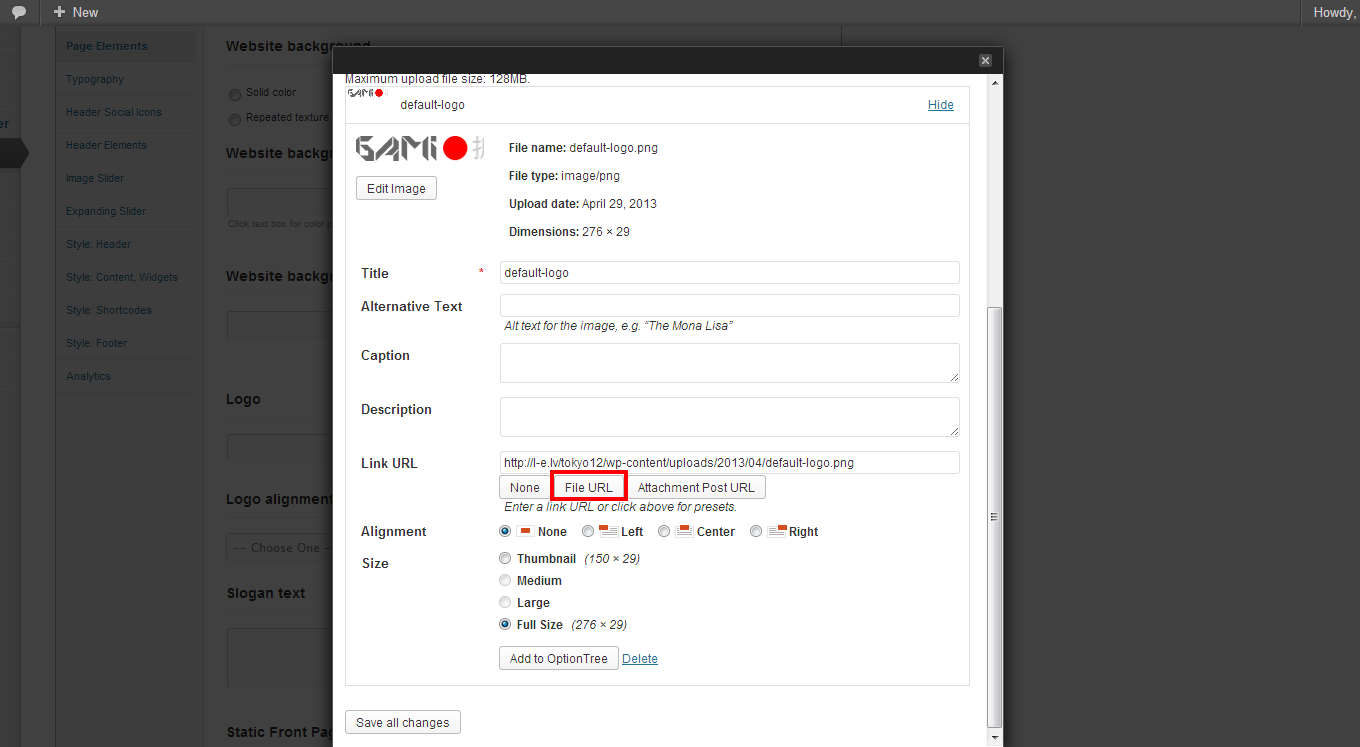
Looking at the code of your website, this is what I’d recommend: please make sure that you choose “File URL” from the “Link URL” options when in the image upload pop-up dialogue for the logo (see this screenshot). Let me know if reuploading the logo using this setting solves the issue!
Sincerely,
Andrew | Satori StudiosatoriKeymasterDear Denis,
please check if the URL field for the “Pokrovitelji” menu item in “Appearance -> Menus” admin section is a single hashtag (“#”). If it is already, please let me know!
Sincerely,
Andrew | Satori StudiosatoriKeymasterDear Denis,
in fact I really appreciate (and I mean it) you pointing out the bugs and issues in the theme, because this helps me make Sensei (and other themes) better!
Sincerely,
Andrew | Satori StudiosatoriKeymasterDear Jimmy,
It looks like the timthumb addon is not treated properly in this case. Could you please try the following: download this file from my repository, unzip it, and upload into the following folder inside your WordPress installation: /wp-content/plugins/shortcodes/lib/. Let me know if this helps!
Sincerely,
Andrew | Satori StudiosatoriKeymasterGreat! :)
Should you have more questions or issues, do not hesitate to contact me!
Sincerely,
Andrew | Satori StudiosatoriKeymasterHey Thomas,
first of all, thank you for the purchase!
In case you wish to have the language switcher on the background slider page, this page at WPML details the functions and calls to implement it. If you have no experience with php, you can tell me the website’s URL, the exact place where you want the language switch to be, and send the admin login and password to support@satoristudio.net – and I’ll insert it for you.
It is also worth noting that the background slider is not the only type of page that is possible to have as a front page – in fact, you can set any page of any template as the front page, by going to the “Settings -> Reading” admin menu.
Sincerely,
Andrew | Satori StudiosatoriKeymasterHey Jimmy,
I can see that you’ve inserted the code successfully, and it does work as well :) the space above the text has become narrower, but if you want it to decrease even more you can alter the margin part of the code you’ve just inserted: instead of “margin-top: 0 !important;” try “margin-top: -10px !important;“. You can change the “-10px” to any other number that suits your needs.
Sincerely,
Andrew | Satori StudiosatoriKeymasterHey Denis,
to be frank with you, this situation was left intentionally since the vast majority of the websites do not display admin back-end to their users. However, I’ve took the time now and found a more elegant way to position the submenus so that they appear where they should both for logged in and all other users. I’ve made the respective corrections in your style.css file (for the record: I’ve changed one declaration for the #nav-primary ul li ul element (line 407) – deleted “top: 33px” and added “margin-top: -9px” instead). Thanks for pointing this out, will include into the latest update as well!
Sincerely,
Andrew | Satori Studio -
AuthorPosts