Forum Replies Created
-
AuthorPosts
-
 satoriKeymaster
Hey Punisher,
this is indeed a theme bug, my apologies and thank you for pointing it out!
To fix it, you’ll need to add this code to the “style.css” file (opens by default when you go to “Appearance -> Editor”:
.widget_nav_menu ul ul, .widget_nav_menu ul ul ul { display: none; }
and hit “Update File” to save the changes.Let me know if this removes the problem!
Best,
Andrew / Satori StudiosatoriKeymasterGlad it works!
Should you have other questions/issues, do not hesitate to ask!
Best,
Andrew / Satori StudiosatoriKeymasterHey lenuit,
first of all, thank you for the purchase!
To answer your question: I haven’t included a back-end option to change the background slider controls fill color so far, I will need to add this to the development list for Kabuki, thank you for bringing this up! In the meanwhile, you can change the fill color of the buttons (and captions) by adding a line of code at the bottom of the “style.css” files (should open by default when you go to “Appearance -> Editor”):
#slidecaption, #play-button, #prevslide, #nextslide { background-color: #000000 !important; }
replacing the #000000 with any other color on the hexadecimal scale.If you also want to change the white arrows inside the buttons, you will have to replace the images in this folder with your own: /wp-content/themes/Kabuki/includes/supersized/img/. The arrow images are “back.png” and “forward.png”; the play buttons are “play.png” and “pause.png”.
Should you have more questions, do not hesitate to contact me!
Sincerely,
Andrew / Satori StudiosatoriKeymasterDear Peter,
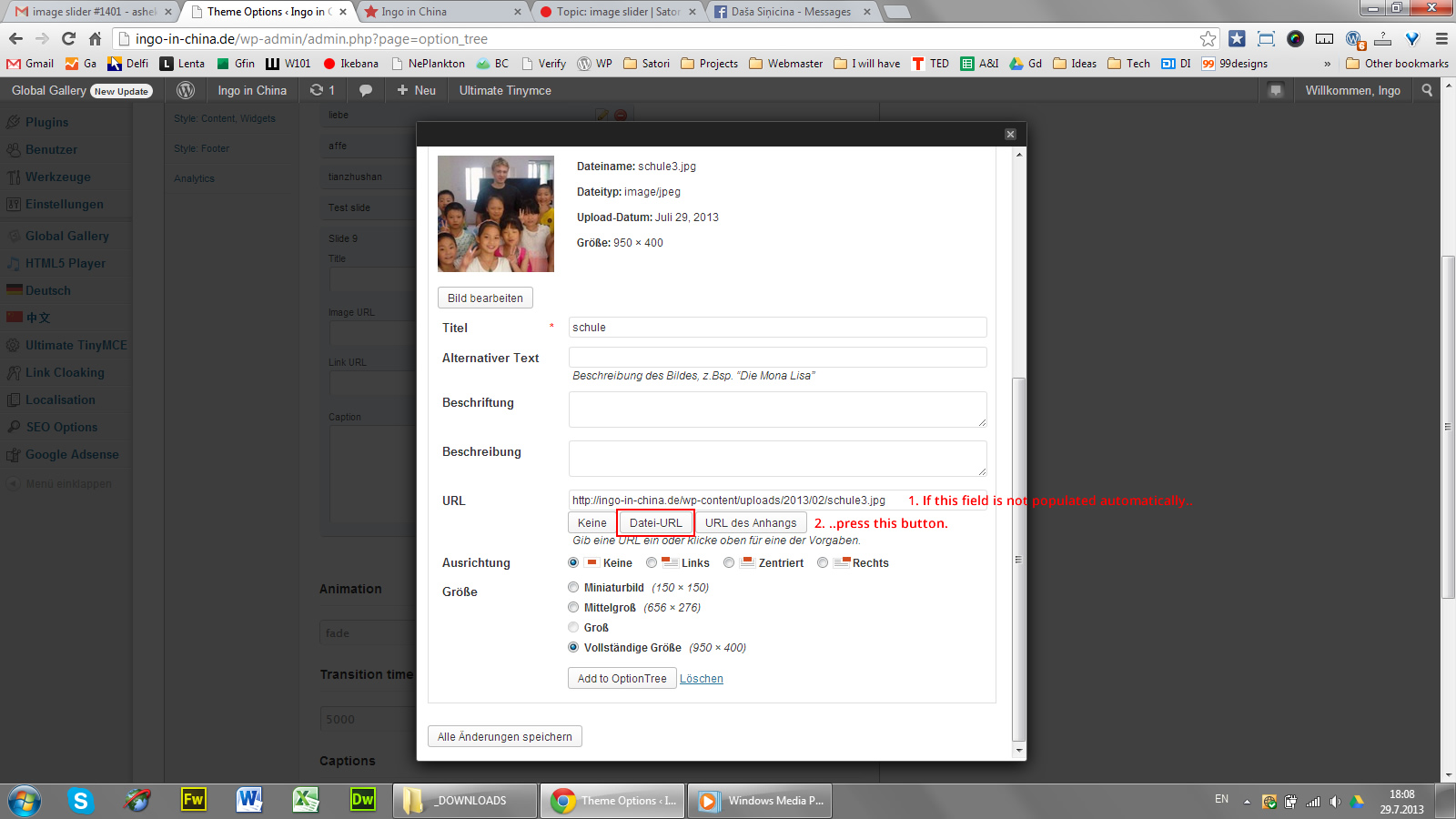
I’ve checked the slider options, here’s why the issue arose: to be saved by the system, every new slide needs to have an image (it is a mandatory field for this option type) – yet in the image upload overlay box the “URL” field was not filled automatically by the system, despite the fact that in 99% of the cases it is. This prevented the slide from having any images attached, and in turn prevented the options panel from saving the new slide. Should you encounter this again (low probability, but may happen), just press the “Datei-URL” button below the “URL” field in the image upload box (see screenshot). To ensure that everything is working fine, I’ve deleted the last slide and created a new one called “Test slide” with the same image as the first one – just so you know.
Sincerely,
Andrew / Satori StudiosatoriKeymasterHey Peter,
this hasn’t been reported before – for me to be able to troubleshoot the backend, please send me your login and password to support@satoristudio.net (no disclosure guaranteed) – and I will examine the issue.
Best,
Andrew / Satori StudiosatoriKeymasterHey Jokerless,
One thing you can do is to reinstall the theme, yet bear in mind that your Theme Options panel settings will be lost. Alternatively (or in addition to that), I can troubleshoot the problem if you can send me your admin login and password to support@satoristudio.net (no disclosure guaranteed).
Best,
Andrew / Satori StudiosatoriKeymasterHey Jimmy,
the Tokyo theme image slider (demo here) automatically stretches the entire width of the screen and adjusts the height accordingly – there is no built-in fixed-width slider. There are two possible paths to take if you wish to have a custom-width slider: either install one of the third-party slider plugins that fits your criteria – or alter the code to make the slider fixed-width (the javascript is in the “header-functions.php” and “/includes/orbit-slider/jquery.orbit-1.2.3.js” files, and the css is in the “style.css”, “lessframework.css”, and “/includes/orbit-slider/orbit-1.2.3.css” files).
Sincerely,
Andrew / Satori StudiosatoriKeymasterHey Jokerless,
first of all, thank you for the purchase!
The setting you’re searching for is in the “Style: Menu” tab of the Theme Options panel: please locate the “Always show the menu” item and choose the “Always display the menu” option from the drop-down. Do not forget to hit “Save All Changes” and then refresh the website page for the new setting to take effect.
Let me know if this helps in your situation!
Sincerely,
Andrew / Satori StudiosatoriKeymasterDear Agatha,
this happened because the excerpts are automatically added to every portfolio item on portfolio pages, and in the case of “Carnage” the WYSIWYG text editor added extra div-wrappers to the text of the main content for that project. This led to it being displayed on the portfolio page (other projects did not have those wrapper elements, this can be see by clicking on the “HTML” tab in the top right corner of the main content editor area while in the project editor mode. In any case, this is all too tedious to check all the time, so I’ve introduced some CSS declarations so that the excerpts will never get shown accidentally.
Sincerely,
Andrew / Satori StudiosatoriKeymasterHey Gina,
I’ve made some changes to the website, as per your requests. Please take a look and let me know if this is what you wished to arrive at.
Best,
Andrew / Satori Studio -
AuthorPosts