Forum Replies Created
-
AuthorPosts
-
 satoriKeymaster
Hey Leslye,
I’ve double-checked – the file should be working :) its name is indeed supposed to be “header-functions.php” – I’ve named the archive differently so as to give an idea of its purpose. Could you please double-check if you’ve uploaded the files into the correct folder (/wp-content/themes/Ikebana/), and the original file has been replaced? If it still doesn’t work, please download this file, unzip it, and upload into the same folder.
Please let me know of the results!
Best,
Andrew / Satori StudiosatoriKeymasterLet me know if the custom file doesn’t work as intended.
Should you have more questions, do not hesitate to contact me!
Sincerely,
Andrew / Satori StudiosatoriKeymasterDear Leslye,
first of all, thank you for the purchase!
I did not include a caption into “link” format projects on purpose, since the primary usage for the “link” format is displaying textual links, which can interfere with the captions (for a similar reason I did not include captions on “gallery” type projects, so that they do not overlap the gallery controls). However, having given it a second thought, I’d agree that as an auxiliary function “link” project captions could be useful, so I’ve made changes to the theme files to make them possible. Please download this file from my repository, unzip it, and upload the contained file into the theme folder via ftp (/wp-content/themes/Ikebana).
Thank you for bringing this up, I will definitely include the additional functionality into the upcoming theme update (ver1.4).
Please let me know if this achieves the desired effect!
Sincerely,
Andrew / Satori StudiosatoriKeymasterHey Mahen,
from looking at the page you’ve linked to, I can see that you’ve figured it out. Is this correct?
Sincerely,
Andrew / Satori StudiosatoriKeymasterDear Alejandra,
regarding the 2×1 portfolio tag tile: you cannot make it go away with CSS, since it has a wrapping div which only has a class and no unique ID. To remove the tile, please download this custom file I’ve made for you, unzip it, and upload into the theme folder (/wp-content/themes/Ikebana), replacing the existing file.
Concerning the icon menu links: I can now see that the page http://fx2.com.uy/site/tag-portfolio/portfolio/ exists – have you resolved this issue?
Sincerely,
Andrew / Satori StudiosatoriKeymasterDear Alejandra,
that’s odd, since the portfolio template file in Ikebana (“page_portfolio.php”) does not even contain a title tag. In case it appears again, please let me know!
Sincerely,
Andrew / Satori StudiosatoriKeymasterDear Alejandra,
regarding hiding the title on portfolio page – could you please provide the direct URL of the page in question?
I will answer the additional questions in the same order:
1). Yes, you can add this line: #container-footer { height: 400px; } in the “Style: Add Custom CSS” tab of the Theme Options panel, replacing the “400” with any number you like.
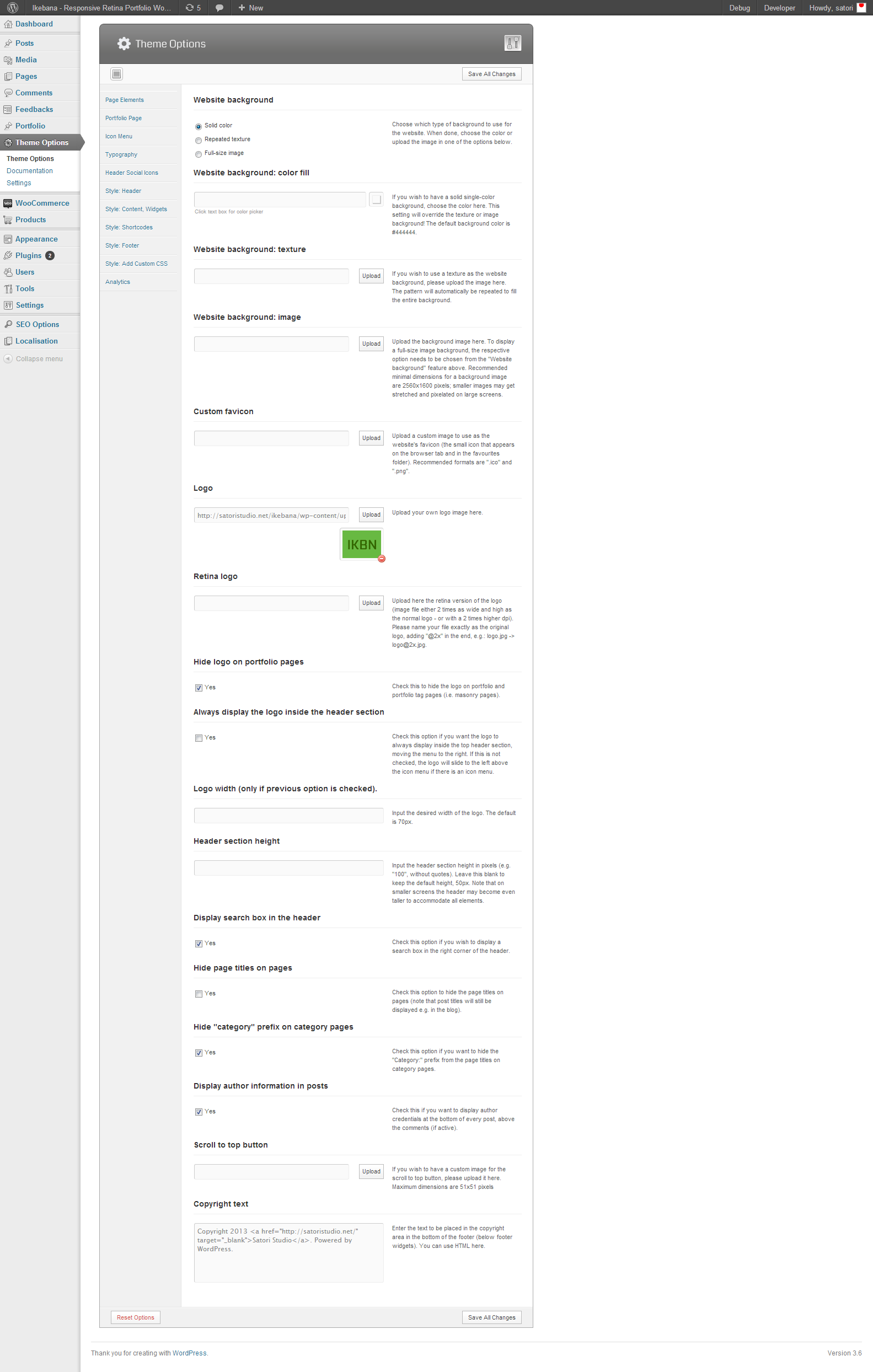
2). I’m using the following settings in the “Page Elements” tab of the Theme Options panel in the demo.
3). Every icon menu item in the “Icon Menu” tab of the Theme Options panel should have either the “Link URL” of the “Filter” field filled in in order to function properly. Please check if this is the case on your website.
Sincerely,
Andrew / Satori StudiosatoriKeymasterHey Mahen,
in WordPress the blog posts page is being rendered by a separate template “index.php” which does not follow normal template rules. There is no back-end option in Kabuki to make the blog posts page full-width, and it was not envisaged as a separate template in Kabuki, but you can achieve the desired result by using some custom CSS (insert it into the “style.css” files, which should open by default when you visit the “Appearance -> Editor” admin section):
@media only screen and (min-width: 990px) {
.blog #content { width: 686px !important; }
.single-post #content .featured-thumbnail img, .page #content img, .blog #content .featured-thumbnail img, .single-post #content a img, .tag #content .featured-thumbnail img, .category #content .featured-thumbnail img, .archive #content .featured-thumbnail img { max-width: 686px !important; }
}
@media only screen and (max-width: 990px) and (min-width: 767px) {
.blog #content { width: 536px !important; }
.single-post #content .featured-thumbnail img, .page #content img, .blog #content .featured-thumbnail img, .single-post #content a img, .tag #content .featured-thumbnail img, .category #content .featured-thumbnail img, .archive #content .featured-thumbnail img { max-width: 536px !important; }
}
For the layout to work, you will also need to download this custom file I’ve made for you, unzip it, and upload the contained file into the theme folder (/wp-content/themes/Kabuki) via ftp.
Let me know if this works!
Sincerely,
Andrew / Satori StudiosatoriKeymasterDear Alejandra,
please clarify – do you want the titles to be hidden on pages with the “Portfolio” template – or on the portfolio projects (i.e. the pages you get to when you click any of the portfolio boxes)? If the former, then the Theme Options setting “Hide page titles on pages” (“Page Elements” tab) should do the trick. In case you meant the latter, the Theme Options setting mentioned above will not affect them, since they are not pages but posts (of type “Project”); in this case you can use the following CSS:
.single-project .post-header { display: none; }Please let me know if I misunderstood the question!
Sincerely,
Andrew / Satori StudiosatoriKeymasterGlad to hear!
Should you have other questions, do not hesitate to contact me!
Best,
Andrew / Satori Studio -
AuthorPosts